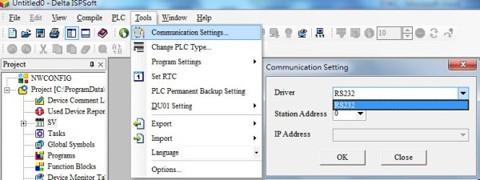
Execute the communication software COMMGR and select the corresponding connection type. Users can link to the AH Motion module by the following two methods.
Case 1: PC link to AHCPU/Motion via mini USB cable line
A. To connect the AH Motion module via an AHCPU connection, please select USB (Virtual COM)
B. To directly connect the AH Motion module, please select RS232 for connection.
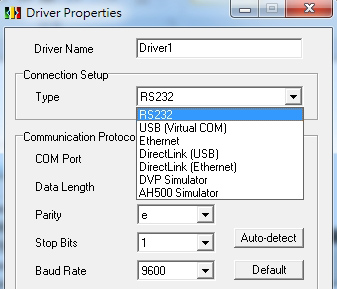
Case 2: Users can connect computers with an RJ45 Ethernet cable and the AHCPU/Motion. Users can locate the devices on the network by defining the IP address or using the search function.
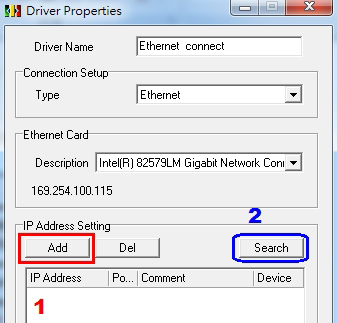
A. To connect the AH Motion module via AHCPU, please select Ethernet (default IP address is 192.168.1.1)
B. To directly connect the AH Motion module via an Ethernet cable, please select Ethernet (default IP address is 192.168.0.100)
After finishing the setup for COMMGR, please remember to switch the status of the corresponded driver to start. The status will show “error” if the communication between computer and module is disconnected.
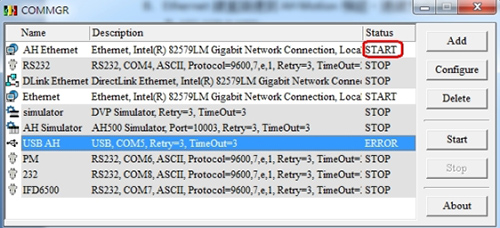
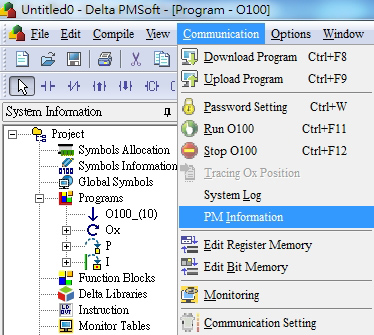
Please open PMSoft software and select the communication setting by clicking 【communication】. Please select the corresponding driver that you chose in COMMGR. (Shown in the window on the right.)
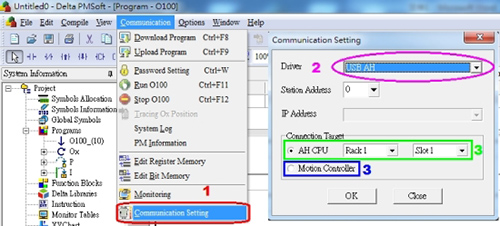
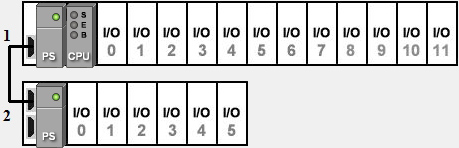
If users choose to connect the AH Motion via AHCPU, they must select the correct racks and their slot positions. For example, if the main rack is number 1, the first extension rack will be number 2 and so on. The maximum is up to number 8. The first slot for the AH500 series is 0 and the number increases to the right side, the maximum is up to number 11.
If users want to directly connect to the AH Motion module, please select Motion Controller
After finishing all the setup above, please select PM Information as a communication option in the PMSoft software. If all setups are correct, the module information of the AHPM or AHMC will appear. Users can then perform program uploads/downloads and online monitoring.